

Copy-paste prompts for invoices, travel, subscriptions, meetings, and the admin pile that quietly eats your week.
Most people open Cowork, type something vague like “organize my files”, get a half-baked answer back, and close the tab. That’s the trap.
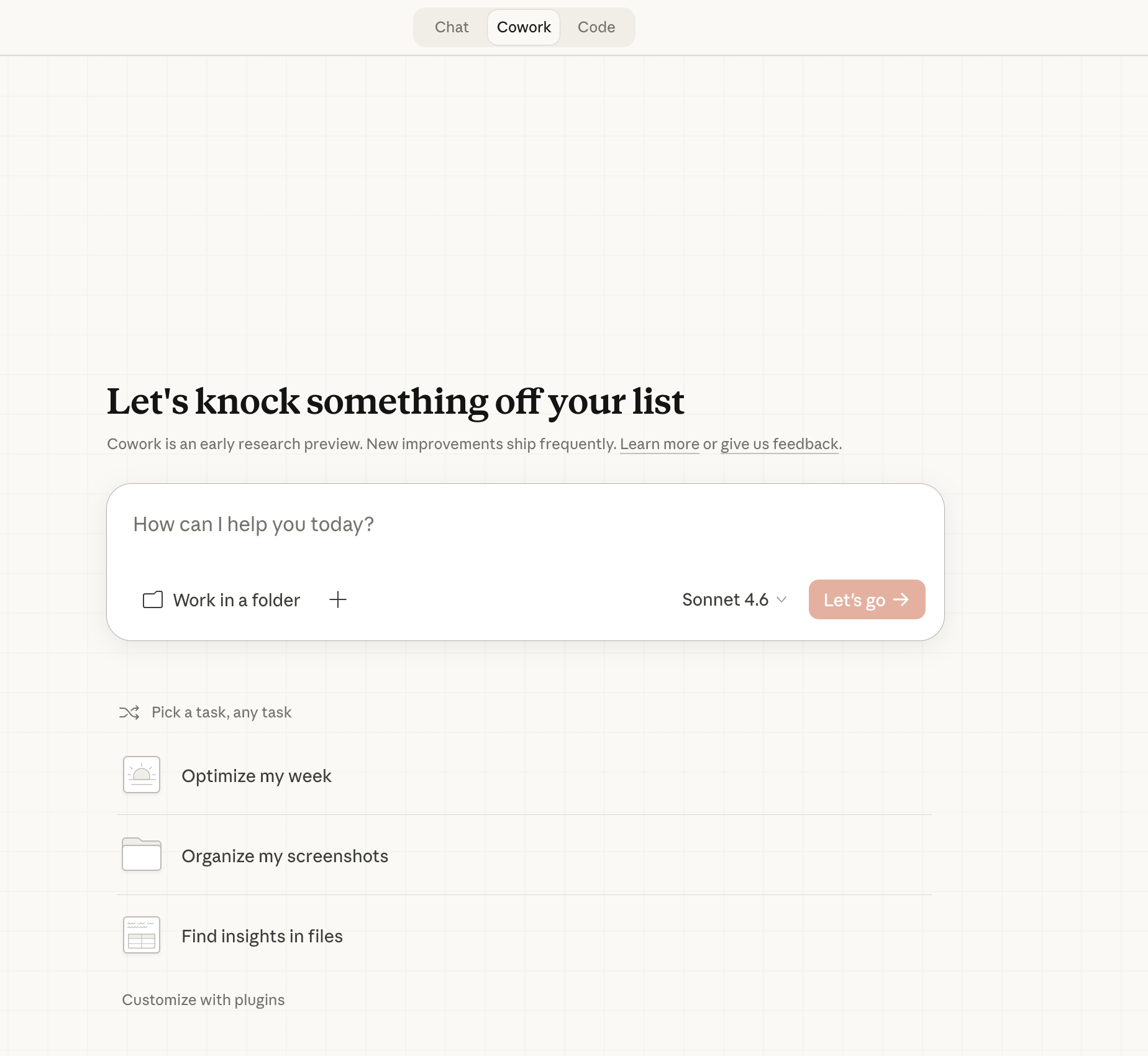
Cowork is not a chatbot. It does not reward one-shot prompting. It rewards iteration. You give it a job. You correct what it got wrong. Then (and this is the part everyone misses) you ask Cowork to rewrite your original prompt so the workflow runs cleanly next time. After three or four cycles, you have a prompt that just works. And if you set it on a schedule, it works without you.
New to Cowork entirely? Start with our Claude Cowork Complete Guide. This post is the prompt layer on top of that setup.
In the last few weeks, I tested a stack of prompts with my own files and inbox. I also pulled the strongest workflows from public Cowork users (Frank Andrade and Ilia Karelin’s prompt library, the orthopedic surgeon running five parallel Cowork tasks at 6am, Anthropic’s own Dispatch documentation). Below are the 10 that earned their place.
In this guide, you’ll get prompts to automate:
The freelance invoice tracker (live artifact, not just a snapshot)
The vendor comparison table that ends with a recommendation
The travel itinerary that pulls every confirmation into one file
The meeting transcript to action-items machine
The subscription tracker that actually saves you money
The job application dashboard
The Downloads folder organizer (set it once, forget it)
The morning brief (calendar plus email plus Slack in one pass)
The competitor watch (scheduled, not manual)
The Dispatch “prep me for the next meeting” prompt
How to actually use these prompts
The mechanics are simple:
Copy the prompt
Open Claude Cowork on your desktop
Paste and run
Grant folder, Gmail, or Calendar permissions when asked
Customize anything in
[BRACKETS]for your situation
The non-obvious part is what happens after the first run. Cowork rarely nails it on attempt one. It scans the wrong folder, formats the table differently than you wanted, misses an edge case. Don’t start over. Tell Cowork what to fix. Then say:
“Now rewrite my original prompt so the next run produces this output cleanly. Save it as a Skill I can reuse.”
That single move turns a one-off task into a reusable system. After three iterations, you stop prompting and start running.
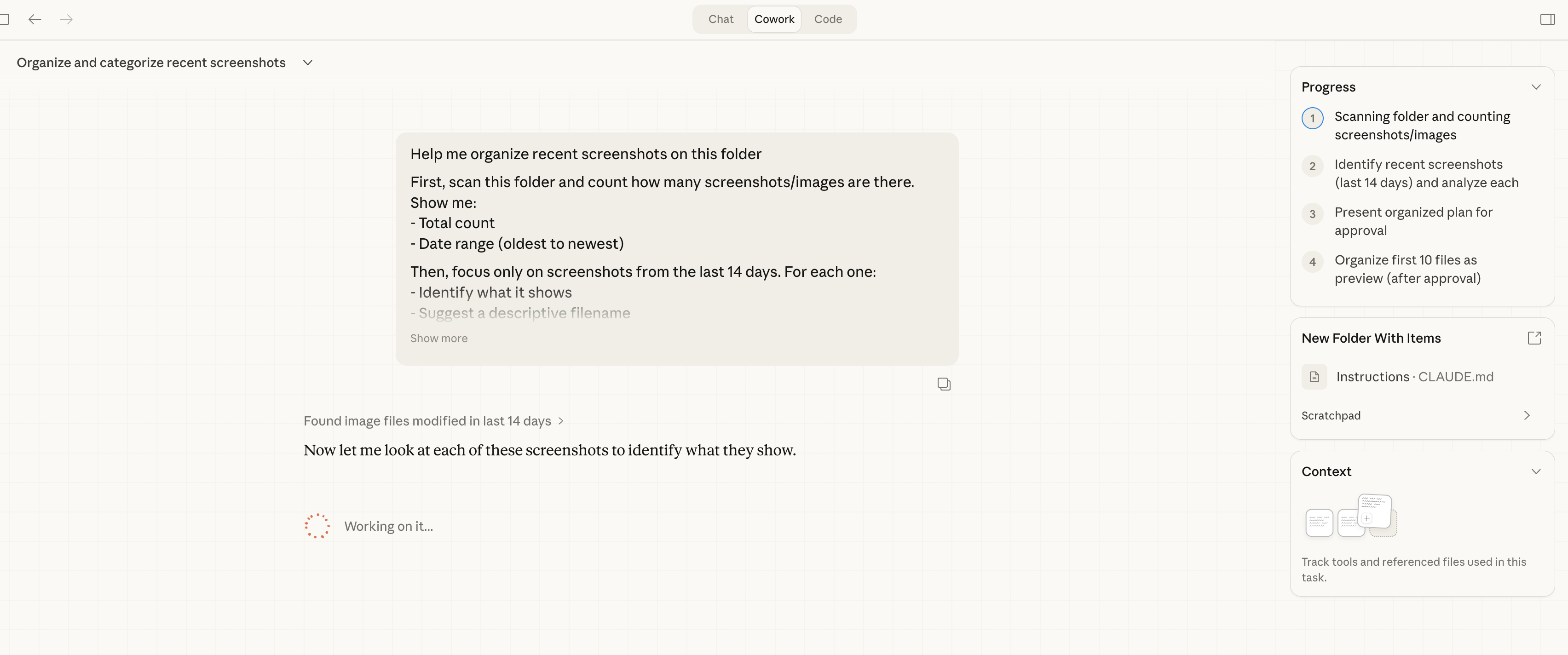
1. The Freelance Invoice Tracker
The problem. You invoiced someone. You forgot when. You don’t remember if they paid. Your bookkeeping lives across Gmail, a folder of PDFs, and a Notion page you stopped updating in March.
What this prompt does:
Scans Gmail and a local invoices folder for every invoice you’ve sent
Flags overdue and unpaid invoices
Calculates total outstanding at the top
Saves a tracker file you can reference any time (or a live artifact that re-scans on demand)
The prompt:
Scan my emails and local files to track all freelance invoices and payment status.

GMAIL FILTER:
- Search for emails containing: invoice, payment, due, overdue, receipt
- Date range: [Last 30 days / Last 90 days / This year]

LOCAL FOLDER TO SCAN (optional):
- [path to invoices folder, e.g., ~/Documents/Invoices]
- File types: .pdf, .docx, .xlsx, .csv

FOR EACH INVOICE FOUND, EXTRACT:
- Client name
- Invoice number
- Amount
- Date sent
- Due date
- Payment status: Paid / Unpaid / Overdue / Unknown

BUILD A TRACKER TABLE:
- All invoices sorted by due date (oldest first)
- Status: OVERDUE / DUE SOON / PAID
- Total outstanding amount at the top
- Total paid this period

SUMMARY AT THE TOP:
- Total invoiced: $[X]
- Total paid: $[X]
- Total outstanding: $[X]
- Number of overdue invoices

OUTPUT: Save as invoices-tracker-YYYY-MM.md in [YOUR FOLDER PATH]
Pro tip. Run this on the first Monday of every month. The overdue column tells you exactly who to follow up with before chasing anything by hand.
Want a live version instead of a static file? Replace the last line with:
OUTPUT: Build this as a live artifact. Every time it's reopened, re-scan Gmail and the local folder and refresh all numbers. Do not cache the previous state.
The live artifact stays connected to Gmail. Every time you open it, it re-scans your inbox and updates totals and statuses. New invoice sent, payment received, due date passed: the artifact reflects all of it without touching the prompt again. There’s a Reload button in the top right corner if you want to refresh mid-session.
2. The Vendor Comparison Table
The problem. You’re picking between three or four tools. You have ten tabs open. You still haven’t decided.
