

We’ve spent a lot of time talking about Claude, agents, and MCP cases, but barely scratched the surface of how Claude is actually used by Professional Devs & Vibe Coders.
Most people still rely on prompts in chat. However, instead of explaining the same rules and tone again and again, you can offload that logic.
In this post, we break down how to simplify your work with the Claude ecosystem, and when it’s better to use what:
What Skills and Plugins are
Skills vs Plugins vs Commands
Where to find them and how to create your own
Ready-to-use Skills and Plugins
Tips from Boris Cherny (creator of Claude Code!)
🔥 BONUS: Hidden pro feature with orchestration of Claude Code subagents
Jump in!
Working Effectively with Claude: Skills and Plugins
Claude is evolving at an incredible pace. New features and capabilities are emerging every week (I’m sure you’ve noticed if you’ve been following our posts). Without knowing them, you are sleeping on Claude’s potential.
Inside Claude Skills
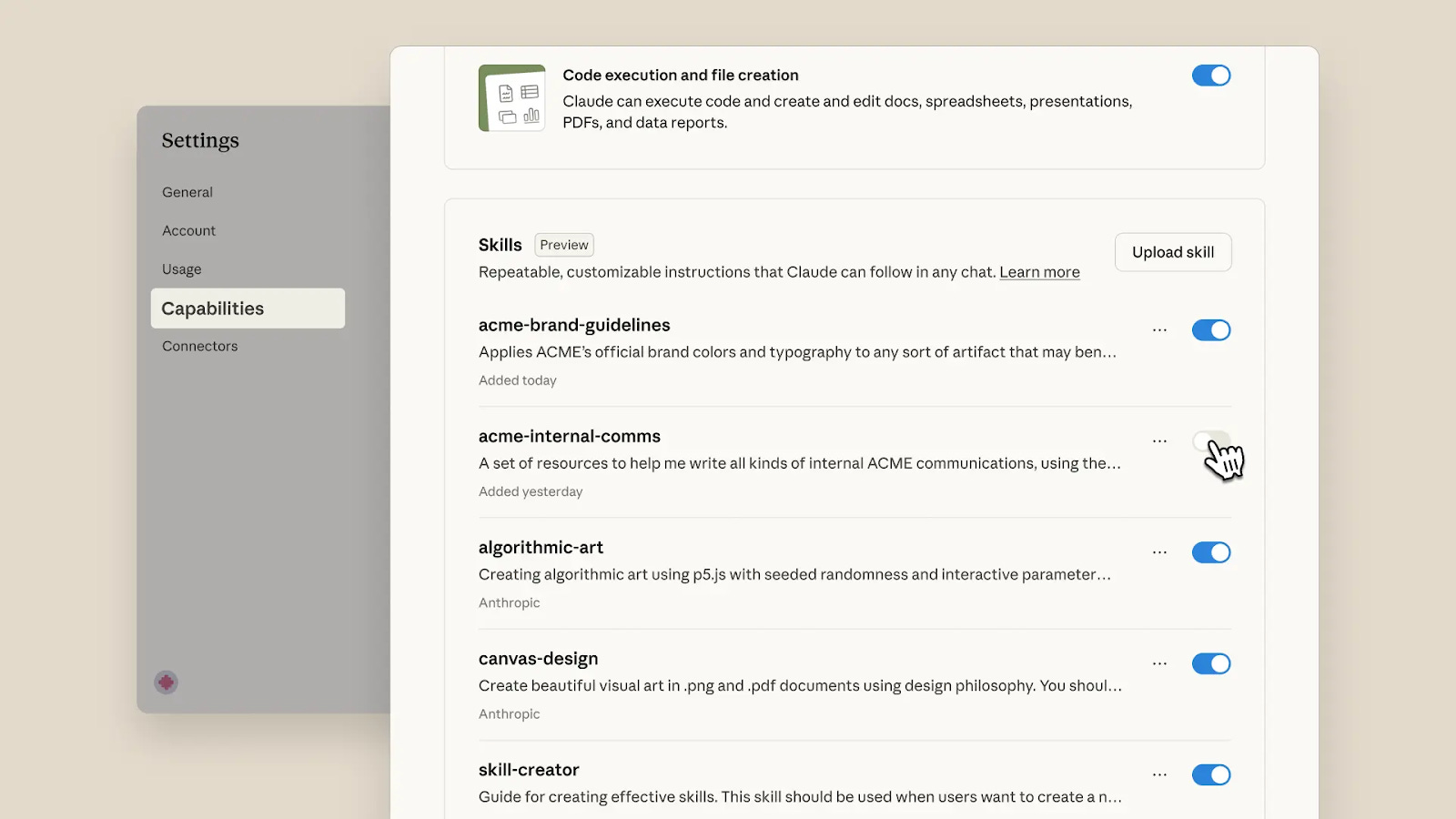
I often see people wondering, “Are Skills just markdown?” when trying to find a definition.
You can’t really answer yes or no to the question in the title; a Skill is actually a folder of instructions and scripts stored inside the SKILL.md.
Skills are reusable resources that provide Claude with domain-specific expertise. And the good news is that you don’t need to memorize the name or trigger it manually.
Selective Context Loading
Traditionally, the system prompt stays loaded for every single message. It’s a constant tax you pay whether you need it or not.
Skills approach:
Metadata stays loaded all the time (~100 words per skill)
SKILL.md loads only when the skill triggers (<5k words)
Most importantly, resources load only when Claude decides to read them
It’s also not a Command
Commands look like this: /pdf rotate document.pdf. And you still pick it manually.
Skills:
Claude figures it out: “User mentioned a PDF…there’s a Skill for that”, and behavior changes based on the description.
It discovers the right Skill automatically.
To explain super simply, a command is a TV remote, while a skill is a voice assistant.
So…It’s just another prompt?
No, because it works on a different system.
Take the simplest example. We write:
When I upload a PDF, check if it needs to be rotated and fix it.
Sometimes, Claude might just rotate it; other times, it might rebuild the PDF, which could make the text no longer selectable.
Skills change the system
Skills work on two principles: Discovery (Claude figures out when to use them) and Determinism (they execute the same way every time). And there is a three-phase loading process:
Phase 1: Awareness
Claude sees metadata for all available skills: “there’s a pdf skill for fixing sideways documents” and “there’s a docx skill for editing Word files”. Each costs about 100 tokens to keep in memory.
Phase 2: Activation
When you say, “This document is sideways, can you fix it?”, Claude loads the pdf/SKILL.md file where everything is already explained.
Phase 3: Deep Dive (optional)
If Claude needs more details, it reads specific files from references/ or executes scripts like rotate_pdf.py. Tokens are spent only as needed.
No doubt, Skills are powerful, but they unlock only individual capabilities you can teach Claude to perform.
There is something even ahead of the pack. We're talking about bundles of multiple skills and commands working together, turning isolated capabilities into integrated systems. These are Plugins.
Claude with Plugins
Plugins are packages of tools and customizations for Claude Code that you can install with a single command.
What’s inside a plugin:
Slash commands – shortcuts for common tasks
Subagents – specialized agents for specific development work
MCP servers – connect to tools and data sources securely
Hooks – points where you can customize Claude Code behavior
How they work:
Install with /plugin
Toggle on/off as needed
Reduce system prompt context and simplify workflows
That's just how skills and plugins work fundamentally. And here are SO MANY templates available that you'll definitely find the ones that automate your tedious processes.
Where to Find Skills and Plugins
The ecosystem offers multiple marketplaces where you can discover and install community-created tools. Here are several main places to explore:
1. Claude Code Templates
An open-source hub for sharing and discovering Skills with the most comprehensive feature set.
Best for: Developers and creators looking for complete workflow solutions
Website: Click
2. Skills.sh
A marketplace focused on rapid distribution. Everything is super clear: you browse, pick a skill, and adapt it for yourself.
Best for: Developers and creators who want the fastest way to try new Skills
Website: Click
3. Claude Code Plugin Marketplace
Anthropic’s official distribution channel for Claude Code plugins.
Best for: Developers and creators who want the simplest way to try new Plugins
Website: Click
4. Agent Skills Marketplace
A searchable hub for the open SKILL.md ecosystem with over 128,000+ skills.
Best for: Developers searching for specific functionality across a huge catalog
Website: Click
Creating Your First Claude Skill
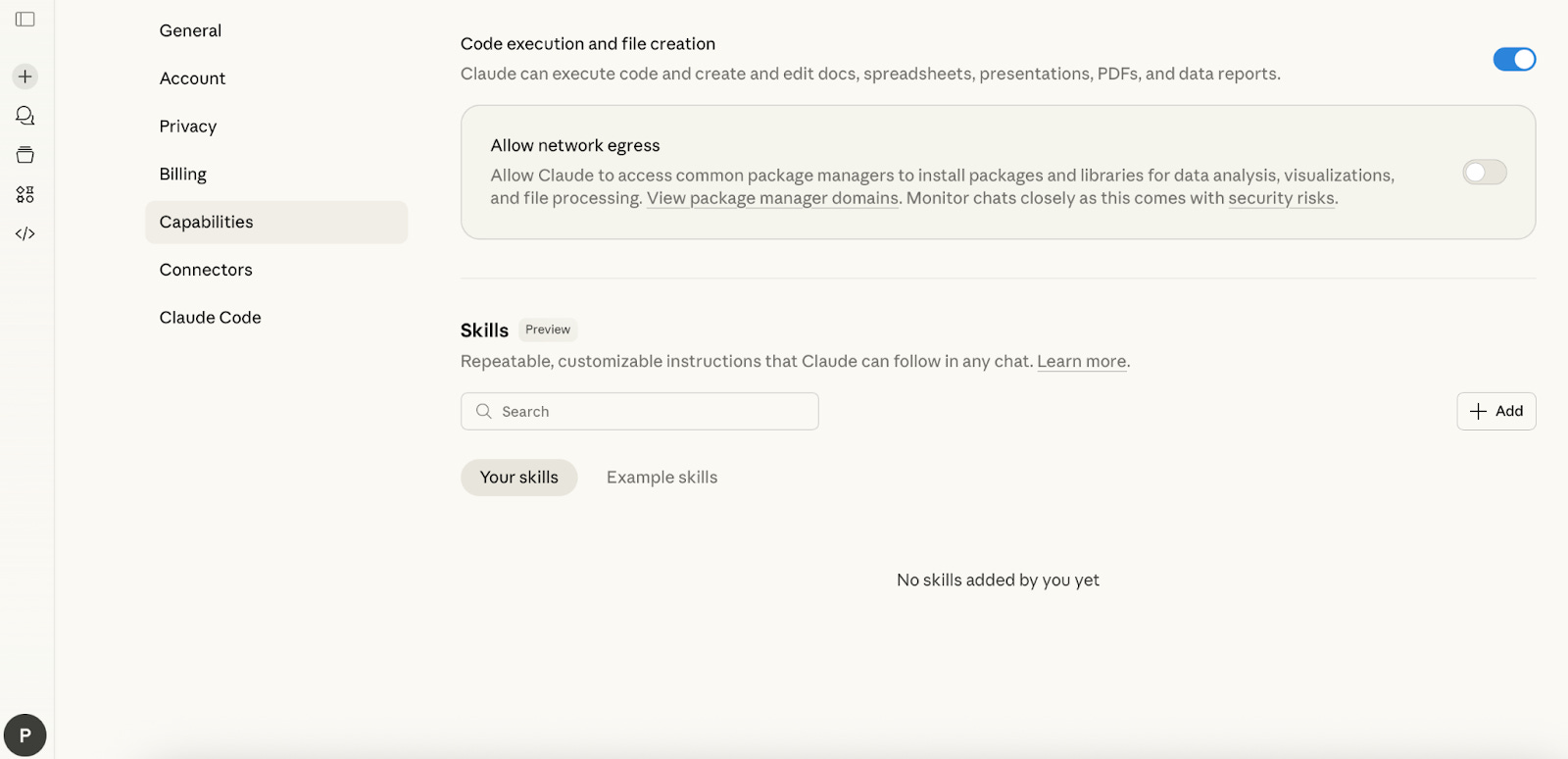
Let’s walk through how to set up your own skill.
Step 1: Go to Settings → Capabilities → Skills.
Make sure that Cloud code execution and file creation are on.
Step 2: Add a New Skill
You have three main options:
Create with Claude
Start a chat and ask Claude to help you build the skill. Feed it all the necessary information, such as documents, examples, notes, and feedback.
After, you can download the resulting SKILL.md file or click “Copy to skills” to import it automatically.
Write Skill Instructions
If you already have some ideas on your mind, add them directly into skill instructions.
Fill in: 1. Skill name 2. Description 3. Instructions
Upload a Skill
As we see, a Claude Skill is just a folder with clear instructions and (optionally) some code.
So, we can just upload these folders. You can use the cases we covered above as a starting point, or create your own skill from scratch
Customizing Cowork with Plugins
Cowork includes plugins for common functions as well:
Productivity – tasks, calendars, workflows
Enterprise search – find info across company tools
Sales – research prospects, prep deals
Finance – analyze financials, build models
Data – query and visualize datasets
Legal – review docs, flag risks
Marketing – draft content, plan campaigns
Product management – write specs, prioritize roadmaps
Full collection: GitHub
Adding Plugins
Go to Cowork tab -> Plugins
Browse and install, or upload custom plugin files
Note: Plugins save locally.
Customizing Plugins
After installing:
Click the Customize button
Claude prompts you to tailor the plugin
Click “Let’s go” to start customization
Using Plugins
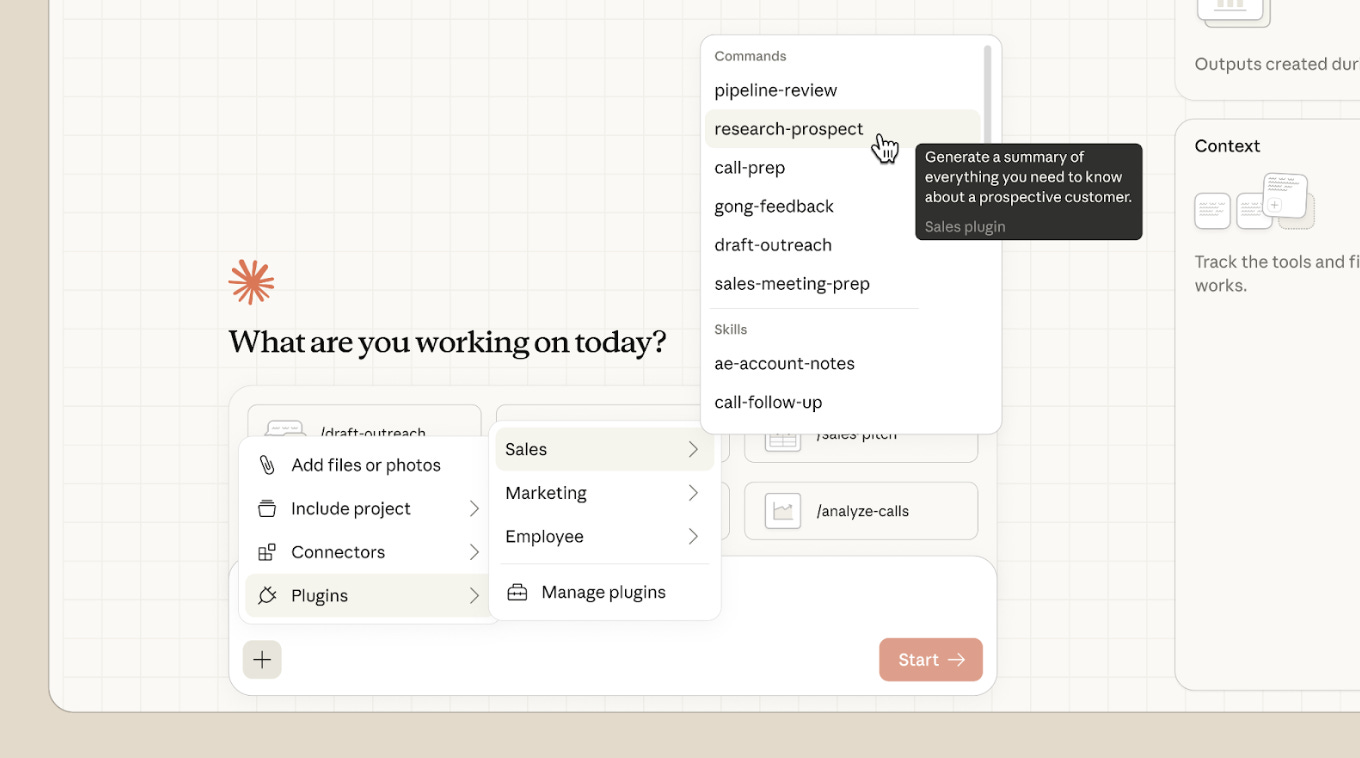
Type + to see commands from installed plugins.
Now that we've covered the basics, let's see how people are actually using them.
The Best Skills and Plugins You Can Use
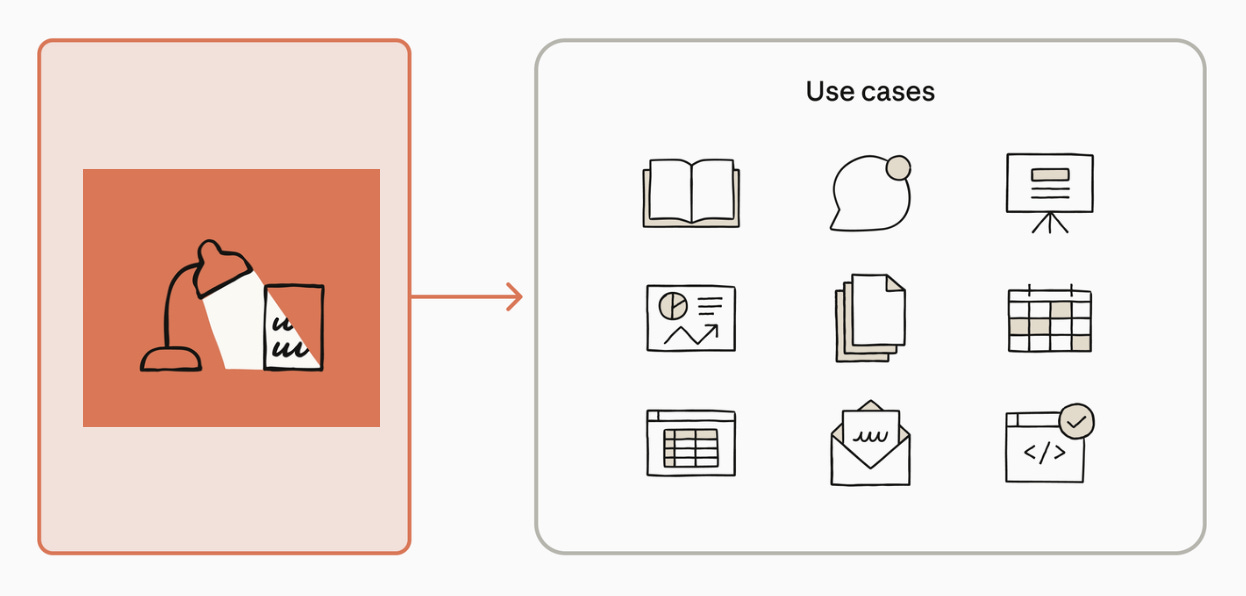
I’ve put together a selection of Skills from different areas that you can add to your Claude Code to make your work a lot easier.
