


Hey everyone. Today’s post is a practical playbook from a marketer who’s been using Claude Cowork daily — with real prompts, real scenarios, and honest takes on where it works and where it doesn’t.
At a Glance
In this piece, you will learn how to:
Set up Cowork correctly so it follows your brand voice from day one
Use it for 5 high-impact marketing tasks: briefs, audits, repurposing, reporting, scheduling
Copy 5 ready-to-use prompts that consistently produce better output
This post is prepared with Guest Author - Andy Wood . Creator of Andy Wood on Substack If you also want to write for Creators AI - send us email here
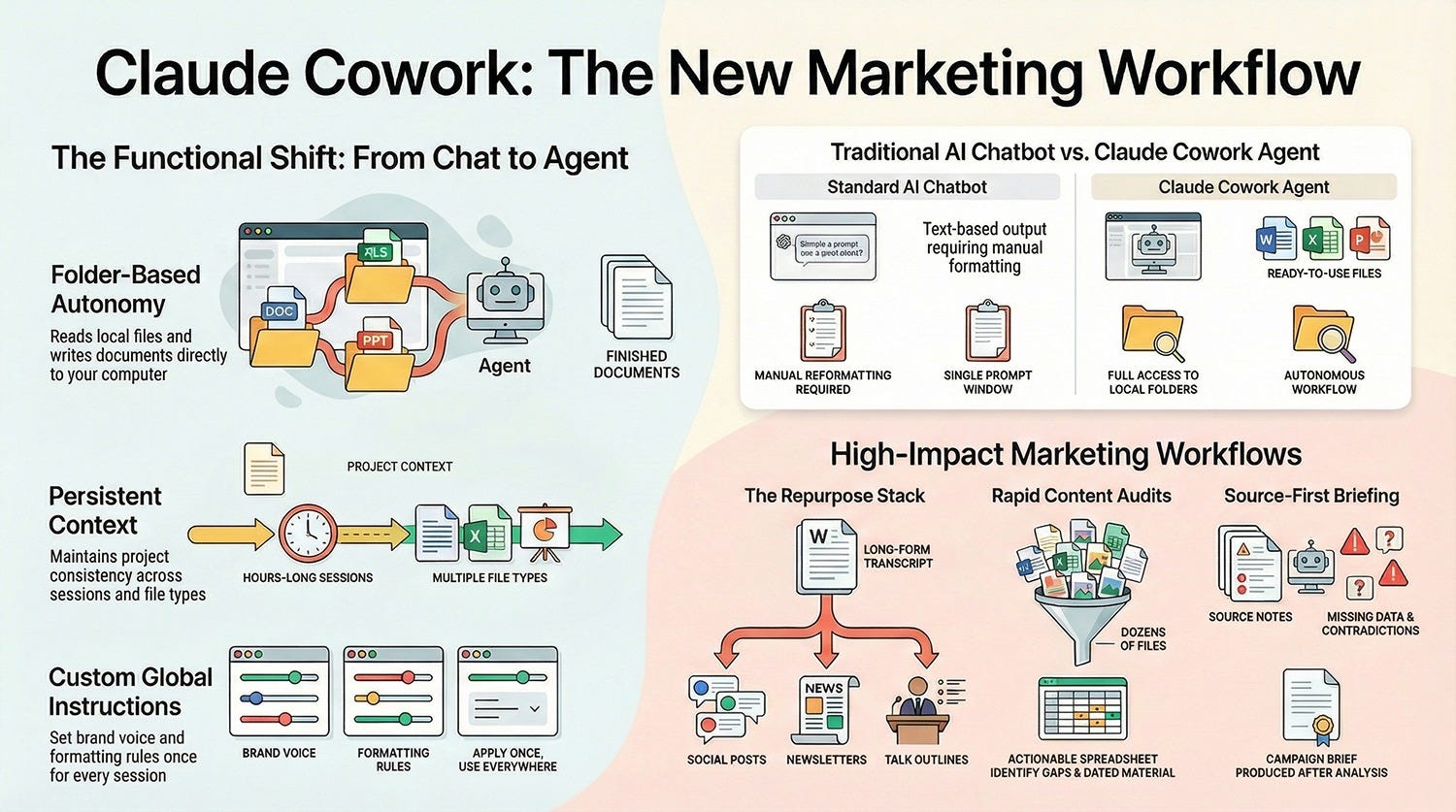
Most AI tools give you a text block. Cowork gives you the finished file. Here's how that changes marketing work. Most marketers I talk to work the same way with AI. They open ChatGPT or Claude, type a request, get back a block of text, then spend the next twenty minutes reformatting it, copying it into a document, adjusting it to match the brief. The AI did some of the work. The human did the rest.
Cowork changes that sequence. It’s not a better chatbot. It’s a desktop agent that reads your files, writes real documents, and finishes jobs while you do something else.
This is what that looks like for marketing work.
This and many other practical posts on building with AI are available exclusively to our subscribers
What Cowork Actually Is
Anthropic launched Cowork on macOS in January 2026, with full Windows support arriving in February. It’s built on the same underlying agent architecture as Claude Code, the tool developers use to write and edit software autonomously, but designed for everyone else.
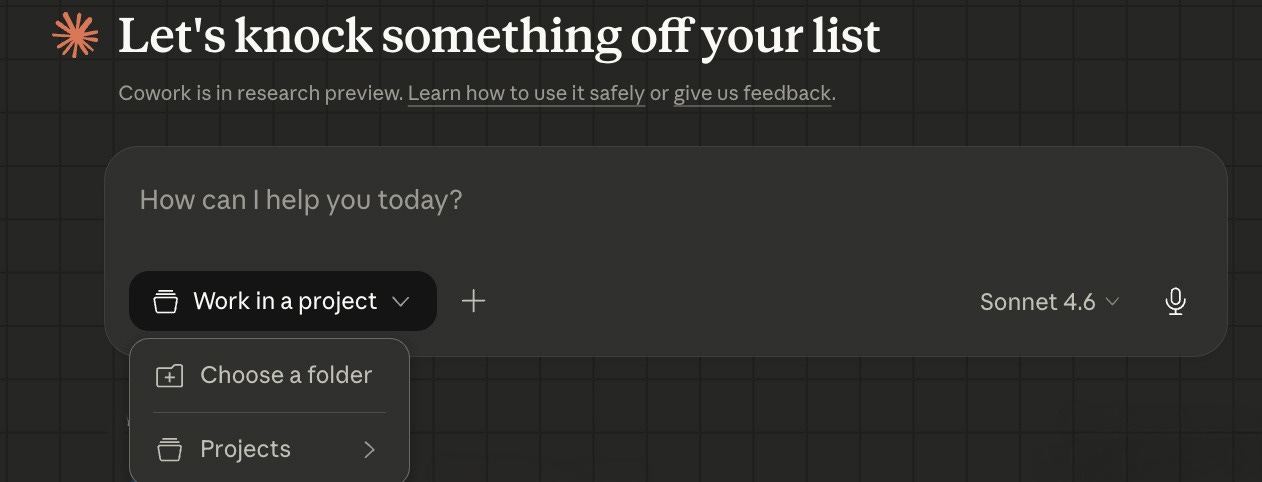
The practical difference from regular Claude chat: you give it access to a folder on your computer. It can read everything in that folder, create new files and edit existing ones. You describe what you want, approve its plan, let it run. When you come back, there’s a Word document, a spreadsheet, a formatted brief. Not a text block you now have to do something with.
Scenario: A content strategist at a B2B software company has a Monday morning problem: the marketing director needs a campaign brief by noon, the source material is scattered across three meeting notes docs, a competitor comparison PDF and some rough audience notes. Previously, she’d spend an hour manually pulling it together. With Cowork, she drops everything into a folder, writes a single prompt, approves the plan, and comes back forty minutes later to a formatted Word document. She spends fifteen minutes reviewing and editing. Brief is done before 9am.
I think Cowork is the most useful thing Anthropic has shipped for non-technical users. The output lands in your file system, in formats you can actually use.
A few things worth knowing before you start. Cowork is available on all paid plans (Pro at $20/month and above), and it’s in research preview, meaning it’s functional but still being refined. It consumes more of your usage allowance than regular chat, so complex sessions on a Pro plan will hit limits faster. For heavy marketing work, Max makes more sense. The desktop app must stay open while Cowork is running too. Close it and the session ends.
New to Cowork entirely? We covered the full launch and what it means for non-technical users: Claude Cowork: Complete Guide & Practical Use Cases
Setting It Up Right
Download the Claude Desktop app from claude.com/download. Open it, and you’ll see a mode selector at the top — Chat and Cowork. Switch to Cowork.
The first thing worth doing is writing global instructions. Go to Settings > Cowork, click “Edit” next to Global instructions. Tell it your brand voice, preferred document formats, your tone. Something like: “I write for B2B SaaS audiences. Tone is direct and practical, short paragraphs, no jargon. Preferred format for reports is Word. Preferred format for data is Excel.”
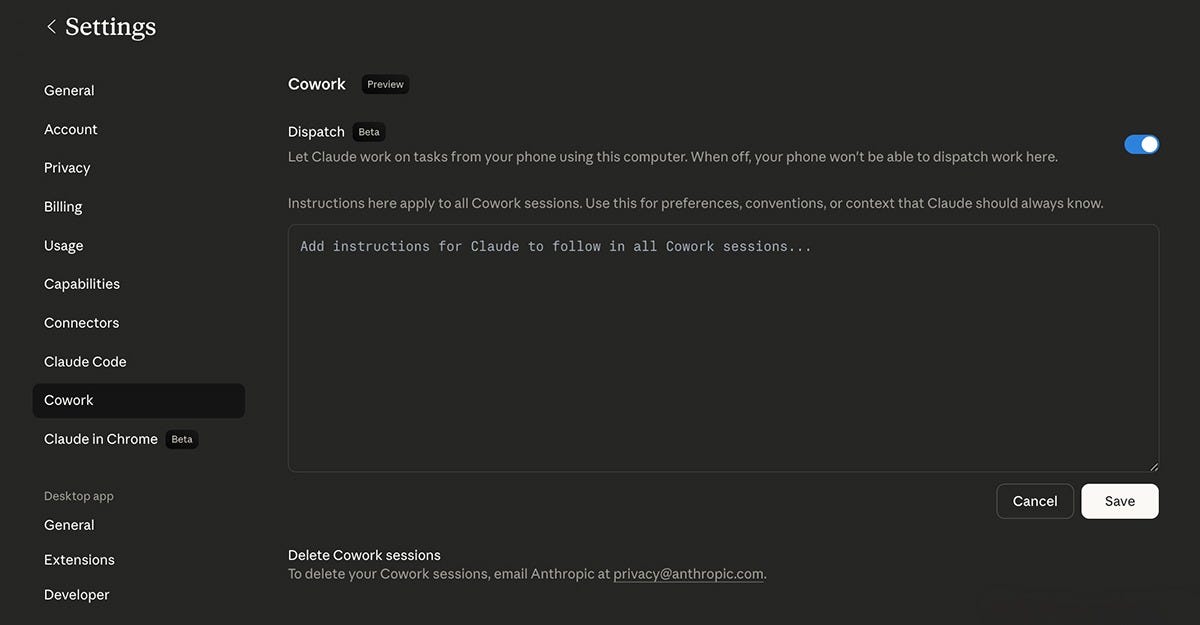
This applies across every session. Write it once and Cowork follows it automatically.
Folder instructions are underused. If you have a client folder with particular requirements, add a brief note inside it. Cowork reads it whenever you’re working in that directory and applies the context without you having to repeat yourself. You can also ask Cowork to update folder instructions mid-session and it will write them itself.
Scenario: A freelance marketing consultant manages four clients simultaneously, each with distinct tones: one formal and regulatory, one casual and consumer-facing, one technical and developer-focused, one lifestyle brand. Rather than restating context at the start of every session, she keeps a one-paragraph instructions file inside each client folder. Cowork reads it automatically. She never has to remember which client prefers bullet points over paragraphs.
One more setup tip: before starting any complex task, tell Cowork explicitly what not to do as well as what to do. “Create new files, don’t edit originals” is the kind of instruction that prevents headaches later.
The Marketing Tasks Where It Delivers
Brand voice documentation
Point Cowork at a folder of your existing content (blog posts, email campaigns, ad copy, social posts) and ask it to produce a brand voice guide: tone, vocabulary patterns, what to avoid, example sentences showing the voice in practice.
The prompt that works well: “Read all files in this folder. They’re examples of our marketing content. Produce a brand voice guide as a Word document. Include: tone description, vocabulary we use and avoid, sentence structure patterns, and 5 before/after examples showing the voice applied to generic text.”
Scenario: A head of marketing at a professional services firm is onboarding a new content agency. Rather than scheduling a briefing call and hoping the agency absorbs the nuance, she points Cowork at two years of existing content and asks it to extract a voice guide. The document that comes back has vocabulary the agency should use and avoid, sentence length patterns, a list of phrases that have appeared repeatedly across their best-performing content. The agency lead reads it in twenty minutes. First draft lands on-brief.
This used to take a consultant or a full internal day. The output is a document you can hand to any copywriter or agency without editing.
Content repurposing at scale
Give Cowork a folder of long-form content (six blog posts, a white paper, a webinar transcript) and ask it to produce a month of social content, a three-part newsletter sequence and a short talk outline, all as separate files in the same folder.
What makes this different from a chat session is context persistence. Cowork holds the thread across a two-hour session, references decisions made an hour earlier, and keeps output consistent across formats. Regular chat can’t do that reliably.
Scenario: A solo marketing manager at a fast-growing SaaS company runs the entire content operation. After their annual product launch webinar, she has 90 minutes of transcript and no time to do anything with it. She drops the transcript into a folder, runs the repurpose prompt, and leaves for lunch. She comes back to five LinkedIn posts, a three-part email sequence and a talk outline for the next industry event, all pulling from the same core argument. What she’d normally spread across a week of evenings is done before 2pm.
Ask for the social posts first, approve them, then ask Cowork to use the same angle and messaging for the newsletter sequence. It will keep the thread running rather than starting fresh.
Campaign brief production
You have research notes, a meeting summary, a few competitor references. Cowork reads those source files and produces a formatted brief: objective, audience, message hierarchy, channel guidance, success metrics.
Because it’s working from your actual files rather than generating from scratch, the output reflects the real context of the campaign. Ask it to flag any gaps in the source material before producing the brief. You’ll often find it spots things you missed.
Scenario: A marketing director preparing a product launch brief has notes from four separate stakeholder conversations, each with slightly different takes on the target audience. He runs the source-first brief prompt and asks Cowork to flag contradictions before producing the document. Cowork returns a list: the sales team described the buyer as a VP-level decision-maker; the product team’s notes describe a technical champion who influences upward. He sends a quick message to both teams, resolves the conflict, then tells Cowork to proceed. The brief that comes back reflects the real picture rather than burying the ambiguity in vague copy.
Content audits
Drop a folder of existing content and a topic list. Ask Cowork to identify gaps, flag dated material and suggest where existing pieces could be updated rather than replaced.
Scenario: An in-house SEO manager has been asked to audit three years of blog content before a site migration: 60-plus posts, mixed quality, a handful of which reference statistics that are now years out of date. She asks Cowork to read every file and return a spreadsheet with columns for topic, quality score, publish date and recommended action. It flags 14 posts for update, 9 for retirement and 38 to keep. It also identifies three clusters of posts covering almost identical ground. She uses that spreadsheet as her migration brief. The whole audit takes an afternoon rather than a week.
This is tedious work most marketing teams either skip or do badly because it takes too long. Ask for the output as a spreadsheet with columns for piece title, publish date, topic coverage and recommended action (keep/update/retire). That format makes it immediately actionable.
Reporting across Excel and PowerPoint
If you have the Claude in Excel and Claude in PowerPoint add-ins installed (both free for paid plan subscribers on Mac), Cowork can work across them simultaneously. Analyse campaign data in a spreadsheet and push a chart or summary slide directly into a presentation, without switching between apps.
Scenario: A performance marketing manager has to produce a monthly board report. Previously, she’d spend half a day extracting data from campaign dashboards, pasting into Excel, building charts, then manually recreating those charts in PowerPoint. Now she exports raw campaign data into a folder, runs a Cowork session with both add-ins active, and describes the output she needs: analysis and charts in the spreadsheet, key findings as slides in the PowerPoint template she’s already set up. She comes back to a near-finished deck. She spends twenty minutes on narrative polish. The report is done before lunch.
For a monthly marketing report the workflow looks like this: raw data in Excel, Cowork builds the analysis and charts, those charts land in the PowerPoint template you’ve already set up. The whole thing runs while you do something else.
Scheduled tasks
Type /schedule in any Cowork task and you can set it to run automatically: daily, weekly, monthly. The scheduled task only runs while your computer is awake and the app is open, but within that constraint it’s a real time-saver.
Useful scheduled tasks for marketers: a competitive monitoring digest every Friday pulling from saved articles and notes, a content performance summary every Monday from your analytics exports, a draft newsletter every Thursday from the week’s content folder.
Scenario: A market intelligence lead at a mid-size technology company saves competitor blog posts, press releases and newsletter issues to a folder throughout the week — a thirty-second habit he’s built into his routine. Every Friday at 4pm, Cowork processes the folder and writes a digest: three trend signals, notable competitor moves, one content idea suggested by what it’s read. Monday morning, instead of starting from scratch on his weekly briefing, he edits a document that’s already 80 percent there.
This turns Cowork from a tool you use into a system that runs. That’s a meaningfully different thing.
If you’re already running AI workflows and want to go deeper on agent orchestration, we covered how solopreneurs are structuring their full agent stacks: How Solopreneurs Are Using Full AI Agents
Is your marketing team still reformatting AI outputs by hand — or have you moved to agent-based workflows? Share in the comments!
The Prompts That Actually Work
Most Cowork users describe what they want in plain English. That works. But certain prompt structures consistently get better output, faster. These five are worth saving to your prompts folder before your first real session.
Prompt 1: The Source-First Brief
What it does: Turns scattered research files into a formatted campaign brief, with gaps flagged before you get the document.
When to use it: You have notes, a meeting summary and some competitor references but no structured brief yet.
The Prompt:
"Read all files in [FOLDER NAME]. Before producing anything, list the information you found and any gaps that would weaken the brief. Wait for my response. Then produce a campaign brief as a Word document with these sections: objective, target audience, core message, channel guidance, success metrics. Use only what's in the files. Don't invent details."How to use it:
Drop your source files into one folder before starting
Paste the prompt, replacing [FOLDER NAME] with the actual path
Review the gap list. Add any missing context as a quick text note in the folder, then tell Cowork to proceed
Prompt tip: Add “flag any claims in the source material that seem contradictory” to catch conflicting direction from stakeholders before it ends up in the document.
Prompt 2: The Voice Extractor
What it does: Produces a brand voice guide your copywriters can actually follow, built from your existing content rather than your opinions about your content.
When to use it: Onboarding a new agency, briefing a freelancer, or trying to document a voice that’s currently just “vibes.”
The Prompt:
"Read all files in [FOLDER NAME]. They are examples of our published marketing content. Analyse the writing and produce a brand voice guide as a Word document. Include: tone description in 3-4 sentences, vocabulary we use and vocabulary we avoid, sentence structure patterns, and 5 before/after examples showing the voice applied to generic text. Base everything on what's actually in the files."How to use it:
Gather 8-15 pieces of content you’re genuinely happy with (not everything you’ve published)
Remove any content that felt off-brand at the time
Run the prompt, then review the vocabulary list carefully — that’s where most voice guides go wrong
Prompt tip: Run this on a competitor’s content too, with a separate folder. Comparing the two outputs is a faster way to find differentiation than most positioning exercises.
Prompt 3: The Repurpose Stack
What it does: Takes one piece of long-form content and produces social posts, a newsletter section and a talk outline as separate files, keeping the angle consistent across all three.
When to use it: You have a webinar transcript, a white paper or a long blog post that deserves more reach than it got.
The Prompt:
"Read [FILE NAME]. Identify the single strongest idea in it. Then produce three separate files: (1) five LinkedIn posts based on that idea, each under 200 words, saved as linkedin-posts.docx; (2) a 400-word newsletter section expanding on the same idea, saved as newsletter-section.docx; (3) a 10-minute talk outline with speaker notes, saved as talk-outline.docx. Keep the core argument consistent across all three. Don't change the angle between formats."How to use it:
Run this on one piece of content at a time, not a folder. Cowork needs a single source to keep the angle consistent
Review the LinkedIn posts first. They’ll show you quickly whether Cowork found the right idea
If the angle is off, redirect mid-task rather than restarting
Prompt tip: After approving the outputs, ask Cowork to add each piece to a content tracker spreadsheet with publish date, format and status columns. One extra instruction, and your calendar is half-built.
Prompt 4: The Audit-to-Action
What it does: Reviews a folder of existing content and produces a spreadsheet telling you what to keep, update or retire, with a reason for each decision.
When to use it: Quarterly content reviews, site migrations, or any time someone asks “what should we actually be publishing?”
The Prompt:
"Read all files in [FOLDER NAME]. For each piece of content, produce a row in a spreadsheet saved as content-audit.xlsx. Columns: file name, approximate publish date if mentioned, primary topic, content quality (1-5 based on clarity and specificity), recommended action (keep/update/retire), reason for recommendation in one sentence. If a piece is dated by specific statistics or references, flag it as 'update - data.' If a piece overlaps substantially with another file in the folder, flag both."How to use it:
Include a rough date in each filename if your files don’t have metadata (e.g. “2023-q1-email-onboarding.docx”)
Don’t clean up the folder first. Let Cowork see the full picture, including the weak stuff
Filter the spreadsheet by recommended action when it comes back. Start with the “update” pile
Prompt tip: Ask Cowork to add a fifth column: “potential to repurpose for social.” It will flag pieces with strong standalone ideas that never got distributed properly.
Prompt 5: The Scheduled Digest
What it does: Sets up a recurring task that reads your saved articles, notes and competitor updates each week and produces a summary document automatically.
When to use it: You save links and articles all week but never actually process them. This closes that loop without you having to think about it.
The Prompt:
"Read all files in [FOLDER NAME]. They are articles, notes and competitor content saved this week. Produce a weekly digest as a Word document called [DATE]-weekly-digest.docx. Structure: (1) three most relevant trends with a one-paragraph summary each; (2) competitor moves worth noting, with source file name; (3) one content idea suggested by what you've read, with a brief rationale. Keep the whole document under 500 words."How to use it:
Set up a “weekly reading” folder and drop links, PDFs and copied text into it through the week
Add /schedule to the task and set it to run every Friday at a time you’re usually at your desk
Review the digest on Monday. The trend summaries alone will save an hour of catch-up reading
Prompt tip: Add “note any ideas that appeared in multiple sources” to the prompt. Convergence across unconnected sources is usually a stronger signal than a single article claiming something is important.
Tips That Actually Make a Difference
Approve the plan before you walk away. Cowork shows you its proposed steps before it starts. Read them. It takes thirty seconds and saves you from coming back to a finished document that went in the wrong direction.
Break big tasks into stages, not one giant prompt. “Audit our content, produce a brief, write five social posts and schedule them” is too much in one go. Do the audit first, approve the output, then move to the brief. Staged sessions produce better work.
Use the steering feature mid-task. If you check in partway through and Cowork has gone off-track, you can redirect it without restarting. Just type a correction. Most people don’t realise this is possible and either let bad work complete or restart from scratch.
Scenario: A marketing ops manager sets a Cowork session running to produce a quarterly report from three months of campaign data. She checks in after twenty minutes and notices Cowork is organising the report by channel rather than by objective. She types a single correction: “Reorganise by campaign objective, not channel.” Cowork adjusts mid-task. The finished report is structured correctly without her having to restart.
Ask it to explain its plan in plain language first. Before approving, type: “Explain what you’re about to do in plain English.” Occasionally you’ll catch a misunderstanding that the formatted plan didn’t make obvious.
Keep a prompts folder. Any prompt that produces good output, save it to a text file in your Cowork folder. Over time you build a personal library of what works for your content, your voice, your clients. Cowork can read that folder and suggest the right prompt for a new task.
We’ve covered how Cowork fits into a broader daily workflow in: How Cowork Can Boost Your Routine Work
What It Won’t Do
Cowork doesn’t generate images. It’s built for text-based outputs: documents, spreadsheets, scripts, briefs, strategies. You’ll still need a separate tool for visuals.
Cloud files need a bit of setup. MCP connectors let you work directly with tools like Google Drive and Notion through Cowork’s settings, or you can sync cloud folders locally as a simpler fallback.
No memory across sessions either. Cowork doesn’t retain context from a previous session, so if you’re continuing a project, keep a summary document in the folder that Cowork can read at the start of each new task.
An Honest Assessment
Cowork rewards people who already know what good output looks like. If you can read a brief and spot what’s missing, you’ll get excellent results. If you’re hoping it will figure out the marketing strategy independently, you’ll be disappointed.
Output quality depends on what you give it too. Vague source material produces vague documents. The more organised your input folder, the better the work that comes back.
For a solo marketer or a small team doing the work of a much larger department, it’s the closest thing I’ve seen to an actual extra pair of hands. Not a prompt that helps you think. An agent that does the work, delivers the file, moves on to the next task.
That’s a different category of tool. Worth the learning curve.
Where to Start
Start with something low-stakes: three or four existing blog posts in a folder. Ask Cowork to read them and produce five LinkedIn posts based on the key ideas. Review what comes back. Adjust your global instructions if the tone isn’t right. Run it again.
Once you’re comfortable with how it handles simple repurposing, move to something more involved: a content audit, a campaign brief from real source files, a brand voice document.
The shift that takes the most getting used to is describing outcomes rather than instructions — telling Cowork what you want to end up with rather than how to do it step by step. Most people have that sorted within a session or two.
Share this with a marketer who’s still copying AI outputs into Word documents by hand
Which of these five prompts are you trying first? Drop it in the comments — I’d love to know what your use case looks like.